

AutoCAD & Plant 3D utility v2.2.0

Petrochem CAD Tools

AutoCAD & Plant 3D drawing clean-up — one click per routine

Petrochem CAD Tools puts the drawing clean-up routines our engineering team uses most into one small window. It starts AutoCAD or AutoCAD Plant 3D, opens the drawing you choose and runs the selected routine on it with one click — no LISP files to load and no commands to type.

AutoCAD, AutoCAD Plant 3D and other AutoCAD-based products 2020 or later · Windows 10 / 11

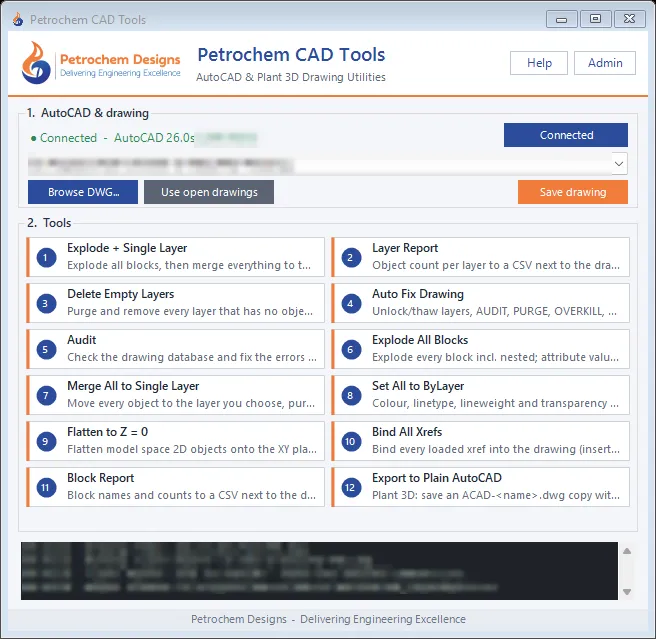
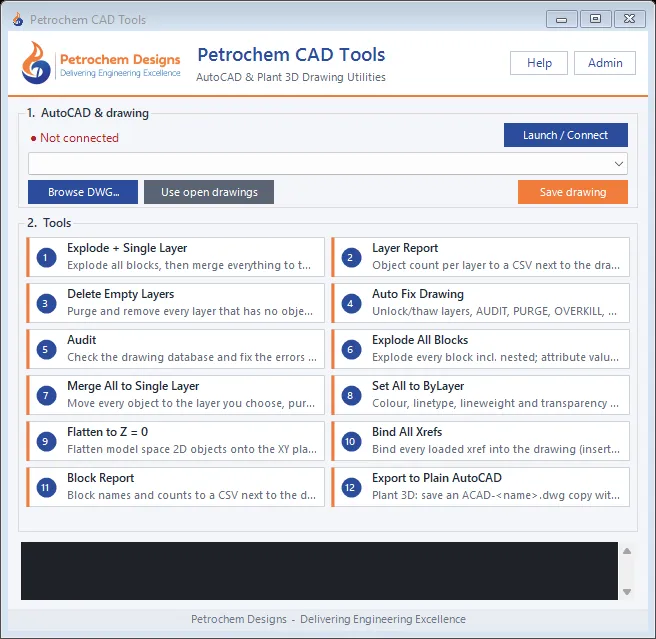
Petrochem CAD Tools Petrochem CAD Tools main window connected to AutoCAD Plant 3D
Key features

Why engineers use Petrochem CAD Tools

  • 12 routines, one click each

    Explode blocks, merge to one layer, audit, purge, flatten, bind xrefs, layer and block reports and more — numbered buttons with a description on hover.

  • Works with the AutoCAD you have

    Starts AutoCAD or Plant 3D for you, or connects to the AutoCAD that is already open. Open any drawing or pick one that is already open.

  • Reports straight into Excel

    Layer and block reports are saved as CSV files next to the drawing and open in Excel automatically.

  • Safe by design

    Tools that change the drawing ask first. Only Auto Fix saves by itself — everything else leaves the drawing unsaved so you can check it or UNDO.

  • Plant 3D to plain AutoCAD

    Save a copy with pipes, fittings and equipment converted to normal AutoCAD objects, so clients and vendors open it without proxy warnings.

  • One file to deploy

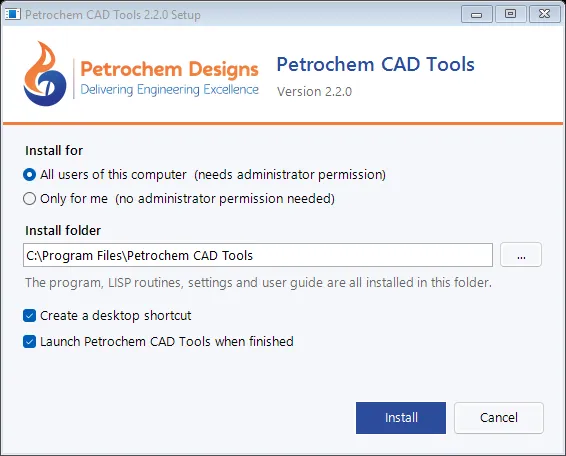
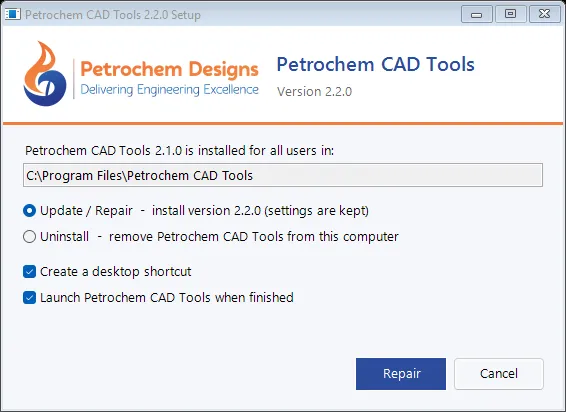
    A single setup file installs the program, routines, settings and user guide — for all users or only for you, with repair, update and uninstall built in.

How it works

From start to result in 5 steps

  1. 1

    Start Petrochem CAD Tools — AutoCAD starts automatically, or the tool connects to the AutoCAD that is already open.

  2. 2

    Choose the drawing with Browse DWG…, or pick one that is already open in AutoCAD.

  3. 3

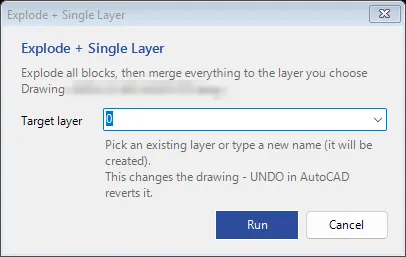
    Click a tool. Tools that change the drawing ask for confirmation or a layer name first.

  4. 4

    Check the result in AutoCAD — reports open in Excel automatically.

  5. 5

    Save when you are happy, or use UNDO in AutoCAD to go back.

What’s included

Inside Petrochem CAD Tools

  1. 1

    Explode + Single Layer

    Explode all blocks, then move everything to the layer you choose — plain geometry for issue to clients or vendors.

  2. 2

    Layer Report

    CSV with the number of objects on each layer, in model space and all layouts.

  3. 3

    Delete Empty Layers

    Purge, then delete every layer that has no objects (layer 0, Defpoints and the current layer are kept).

  4. 4

    Auto Fix Drawing

    Unlock and thaw layers, AUDIT, PURGE, OVERKILL, REGEN, ZOOM Extents and save — the standard clean-up for drawings received from others.

  5. 5

    Audit

    Check the drawing database and fix the errors found.

  6. 6

    Explode All Blocks

    Explode every block, nested ones too; attribute values stay as text in place.

  7. 7

    Merge All to Single Layer

    Move every object — in model space, layouts and inside blocks — to the layer you choose.

  8. 8

    Set All to ByLayer

    Colour, linetype, lineweight and transparency of every object to ByLayer.

  9. 9

    Flatten to Z = 0

    Move 2D model-space objects onto the XY plane to fix snaps, hatching and dimensions.

  10. 10

    Bind All Xrefs

    Make loaded external references part of the drawing, with clean layer names.

  11. 11

    Block Report

    CSV with every block name and how often it is used (dynamic blocks under their real name).

  12. 12

    Export to Plain AutoCAD

    Plant 3D: save ACAD-<drawing>.dwg without Plant 3D objects — your drawing is not changed.

Screenshots

See it in action

Overview

Every drawing that arrives from a client, vendor or another contractor needs the same preparation before it can be used: layers unlocked, errors fixed, unused items purged, duplicate geometry removed. Drawings that leave the office often need the opposite — blocks exploded, everything on one layer, external references bound, Plant 3D objects converted so the receiver can open them.

Petrochem CAD Tools turns these routines into numbered buttons. The log panel shows exactly what is happening — AutoCAD start-up, drawings opened, tools run and reports created — and AutoCAD comes to the front so you can follow progress on its command line.

Typical uses

  • Cleaning drawings received from clients and vendors before use
  • Preparing drawings for issue as plain geometry on one layer
  • Binding xrefs before a transmittal
  • Checking layer and block usage across a drawing
  • Sharing Plant 3D drawings with people who only have AutoCAD

Tip: explode, merge, flatten and bind cannot be reversed once the drawing is saved and closed — work on a copy of important drawings.