

Plant 3D add-in · Early access v1.0 (early access)

Petrochem P&ID Converter

Turn plain AutoCAD P&IDs into intelligent AutoCAD Plant 3D P&IDs — symbols, lines and tags.

Scans an AutoCAD P&ID, matches its blocks and layers to Plant 3D classes, and creates real Plant 3D lines, symbols and tags in a new project P&ID. Early access.

AutoCAD Plant 3D 2027 · Windows 10 / 11

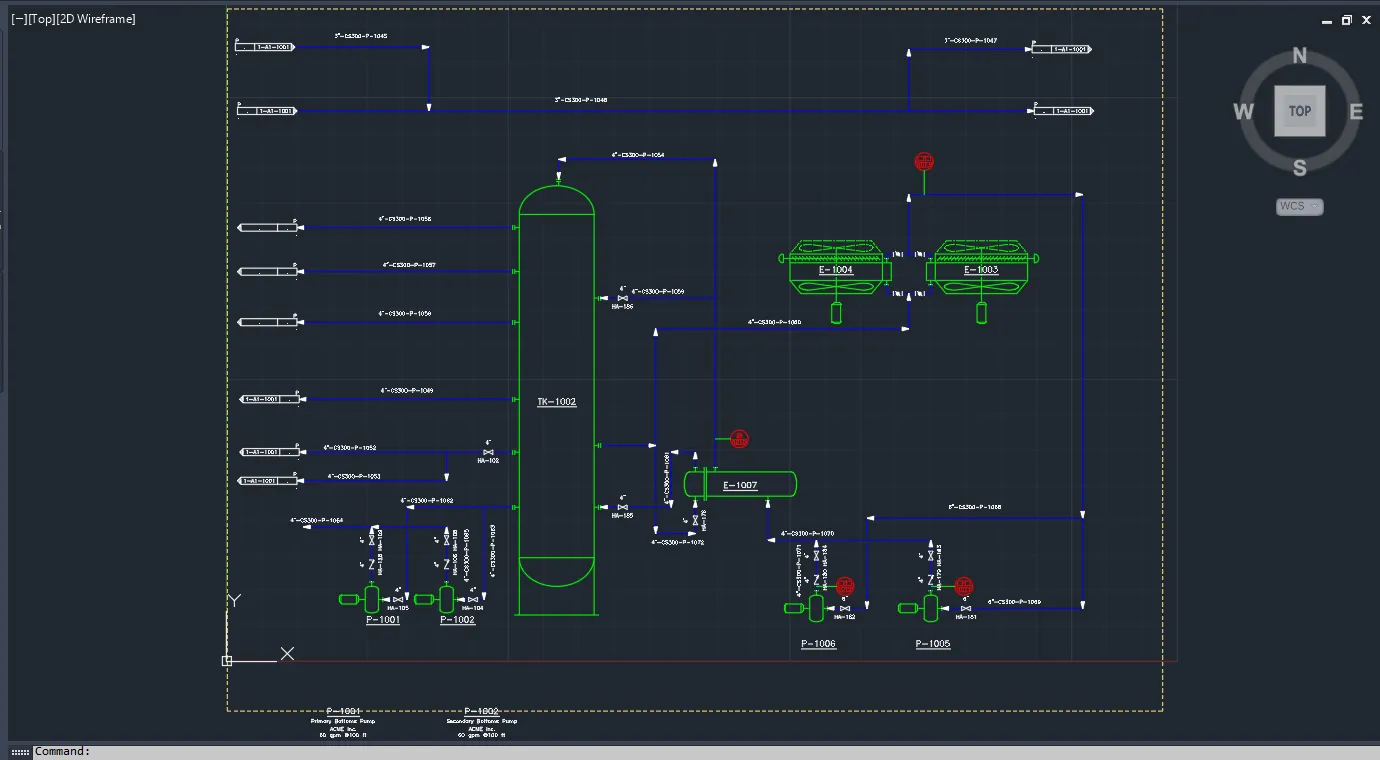
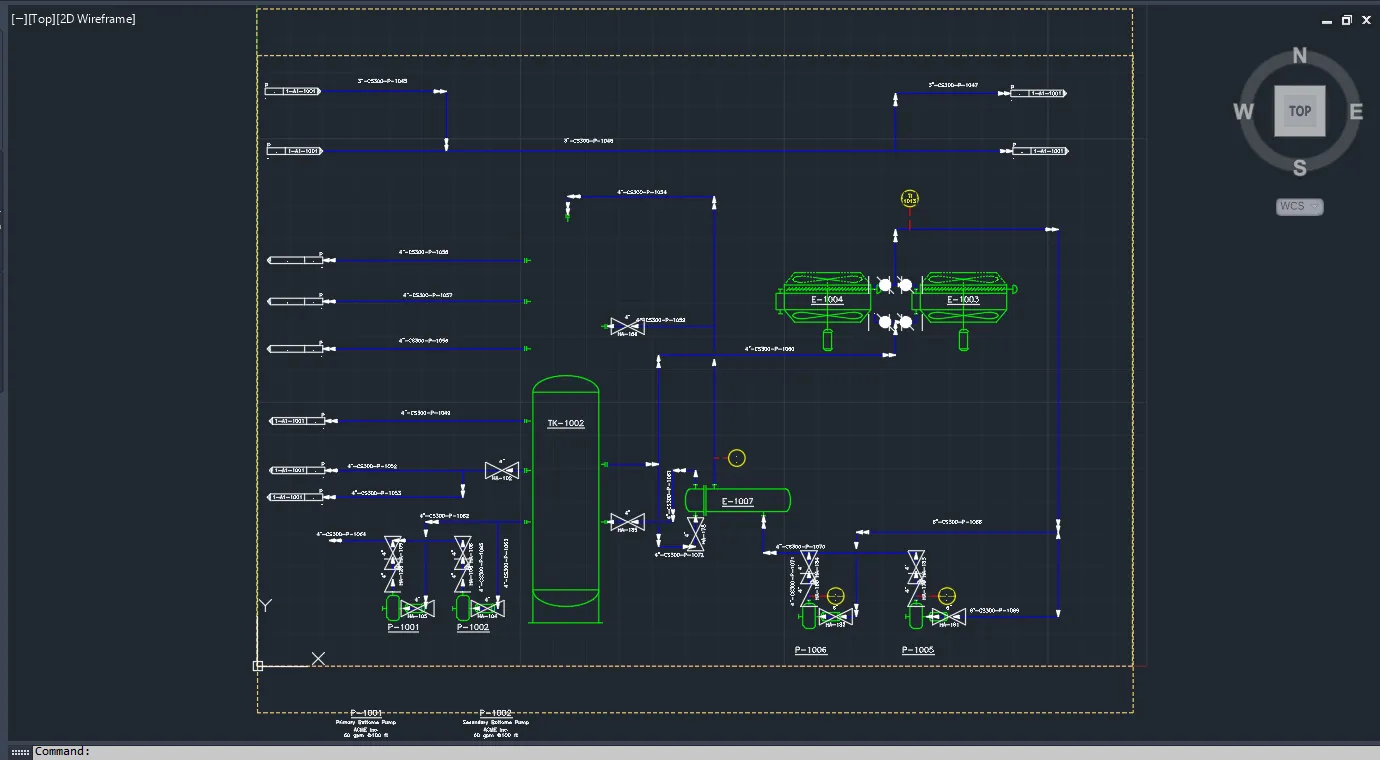
Petrochem P&ID Converter The same P&ID converted into an intelligent AutoCAD Plant 3D P&ID
Key features

Why engineers use Petrochem P&ID Converter

  • Automatic symbol matching

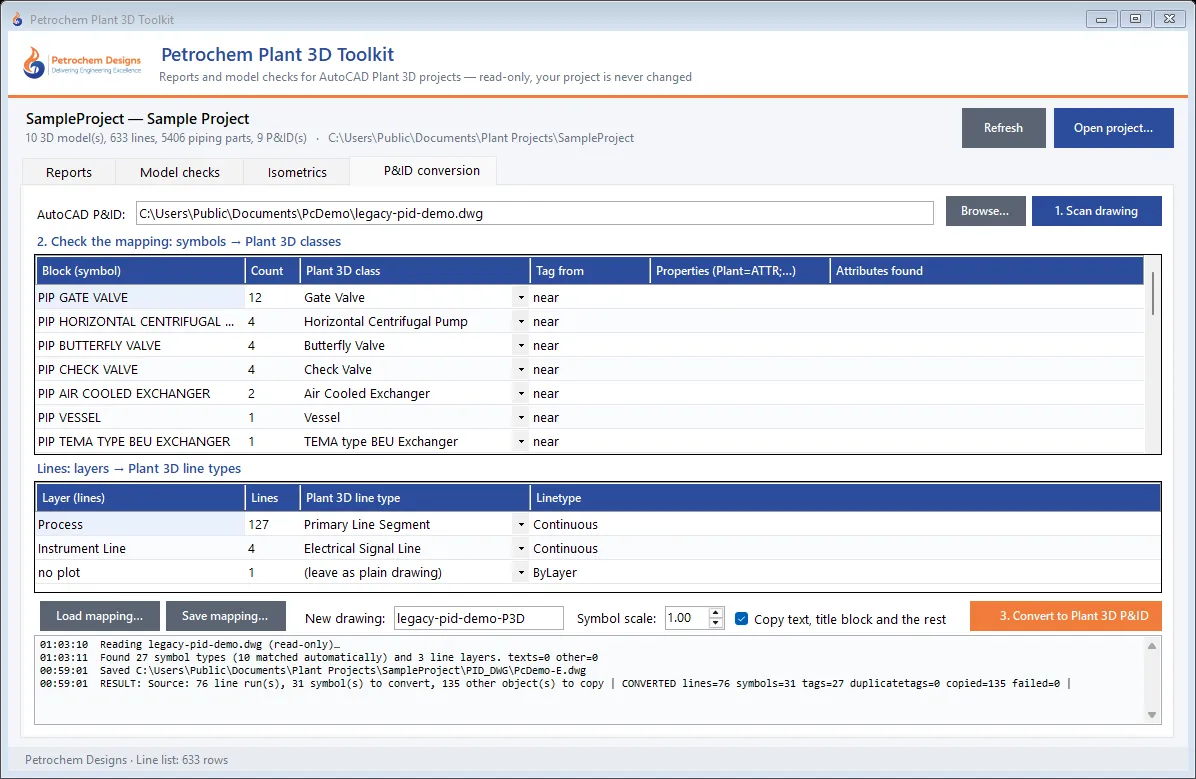
    Block names are matched to Plant 3D classes (“PIP GATE VALVE” → Gate Valve); labels and title blocks are left alone.

  • Real Plant 3D objects

    Lines, valves, pumps, vessels, exchangers and instruments created through Plant 3D’s own P&ID API.

  • Tags from labels or attributes

    Each tag comes from the nearest label or a block attribute, split into Plant 3D’s tag parts (Type-Number, Code-Number…).

  • Reusable mapping

    Check and adjust the mapping once, save it, and convert a whole drawing set the same way.

  • Safe for the project

    Converts into a new project drawing; the source is only read and duplicate tags are reported, never overwritten.

  • Ready for reports

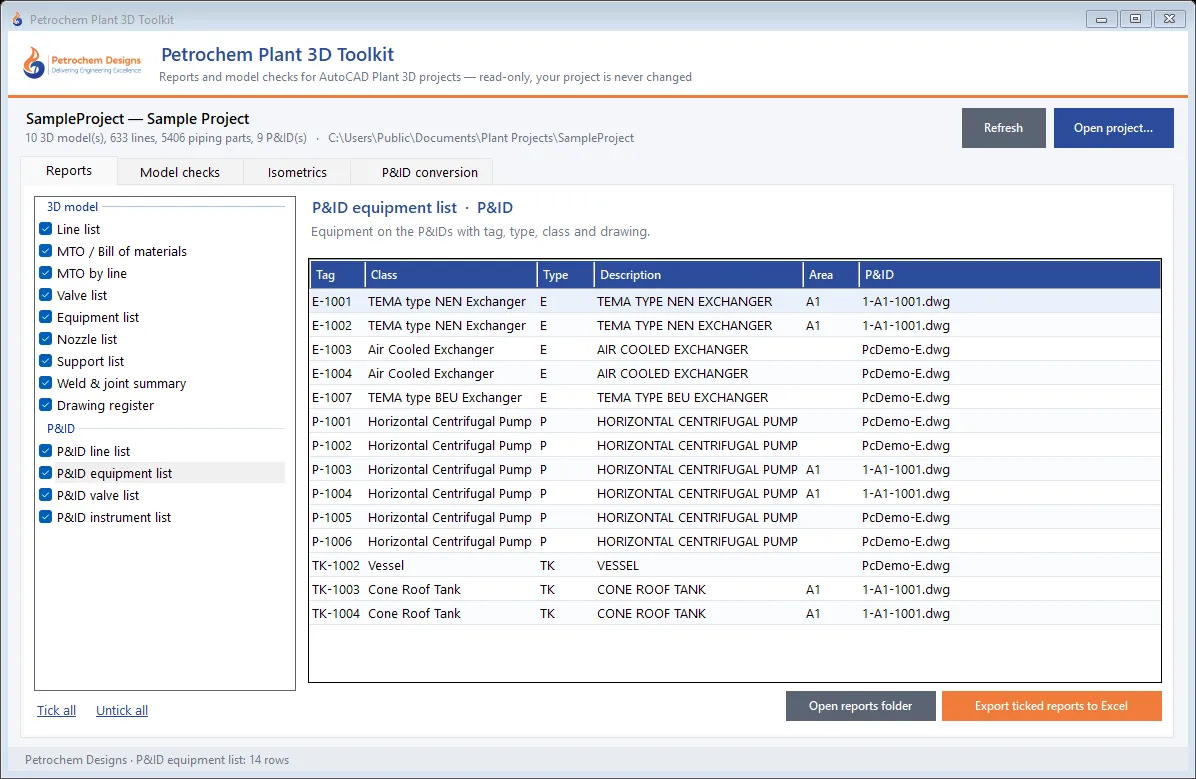
    Converted sheets feed P&ID line, valve, equipment and instrument lists — and P&ID ↔ 3D checks — at once.

How it works

From start to result in 5 steps

  1. 1

    Open your Plant 3D project and choose the AutoCAD P&ID.

  2. 2

    Scan the drawing — symbols and line layers are listed and matched automatically.

  3. 3

    Check the mapping, adjust any class or tag source, and save the mapping for the next drawings.

  4. 4

    Convert — a new project P&ID is created with Plant 3D lines, symbols and tags.

  5. 5

    Review the result in Plant 3D and run your P&ID reports.

What’s included

Inside Petrochem P&ID Converter

  1. 1

    Scan

    Lists every block (with attributes) and every line layer of the AutoCAD P&ID, read-only.

  2. 2

    Symbol mapping

    Blocks → Plant 3D classes and styles, with automatic suggestions you can change.

  3. 3

    Line mapping

    Layers → Primary, Secondary or signal line types.

  4. 4

    Tag reading

    From the nearest label/text or from an attribute; properties such as instrument type and loop number from attributes.

  5. 5

    Conversion

    Creates a new P&ID drawing in the project and fills it with Plant 3D lines, symbols and tags.

  6. 6

    Result report

    Counts of lines, symbols and tags converted, duplicates and anything that could not be converted.

Screenshots

See it in action

Overview

Many projects still hold P&IDs that are only lines, blocks and text. Petrochem P&ID Converter turns them into intelligent AutoCAD Plant 3D P&IDs, where every pump, valve, instrument and line is a real Plant 3D object with its class, tag and connections.

It works with Plant 3D’s own P&ID programming interface, so the result is exactly what Plant 3D would create itself: lines connect, inline valves break the lines, and tags go through the project tag registry — duplicates are reported, never overwritten. The source drawing is only read.

Shown on this page

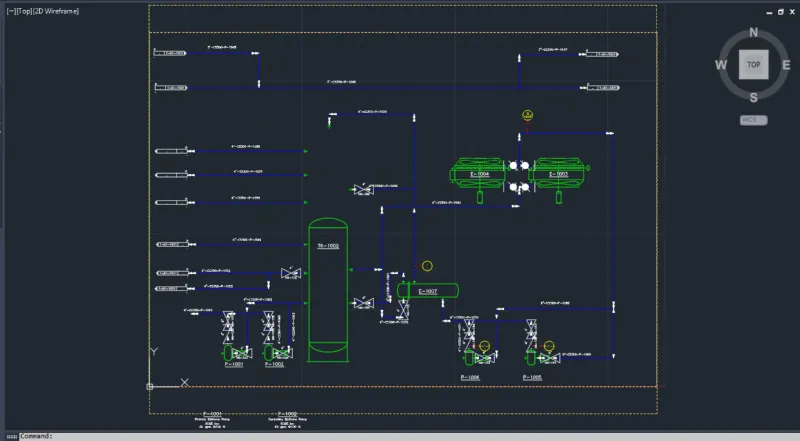
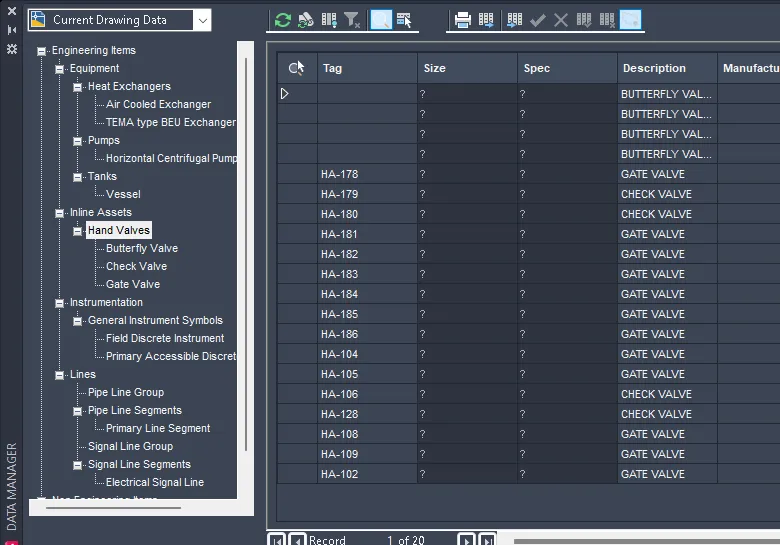
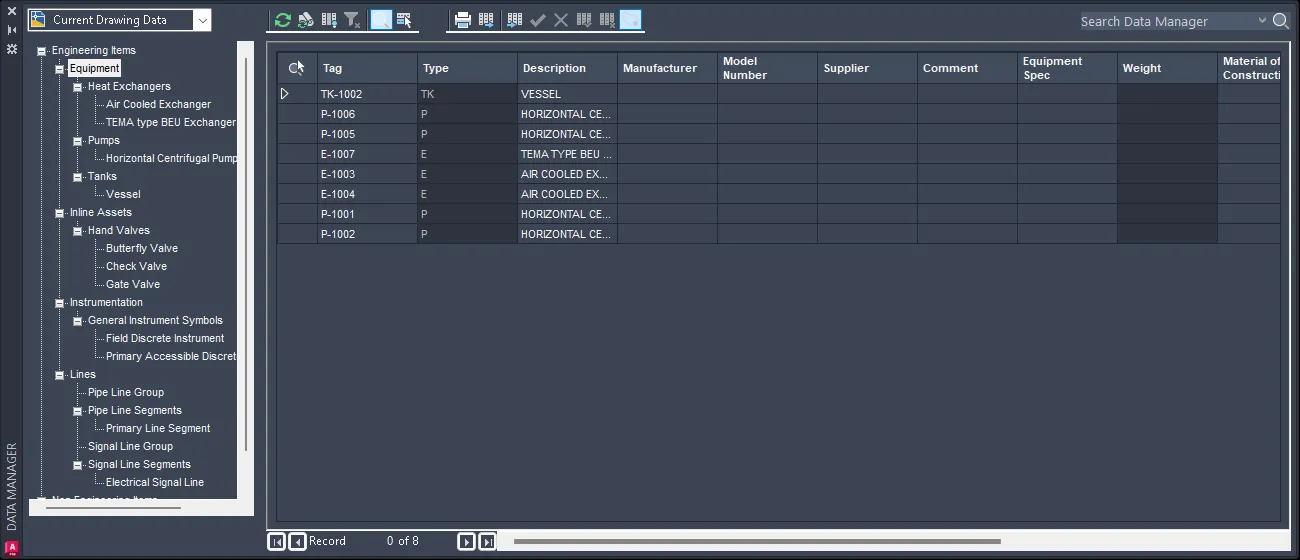
The screenshots show a real conversion: an Autodesk Plant 3D sample P&ID was exported to plain AutoCAD and converted back. Result: 76 line runs, 31 symbols and 27 tags in under a minute, with 0 errors.

What it handles today

  • P&IDs whose symbols are AutoCAD blocks (with or without attributes)
  • Tags from block attributes or from the nearest label / text
  • Instrument type and loop number from attributes
  • Process and signal lines by layer
  • Title blocks, notes and labels copied as plain drawing

Early access — and what our team handles

Drawings whose symbols are exploded into loose lines and circles, and scanned or PDF-only P&IDs, are not converted automatically yet. We convert those for you as part of our P&ID conversion service, using the same tool plus engineer checks.