

PDF revision comparison v1.1.0

Petrochem Drawing Compare

Compare two PDF revisions — cloud every change — get a change report

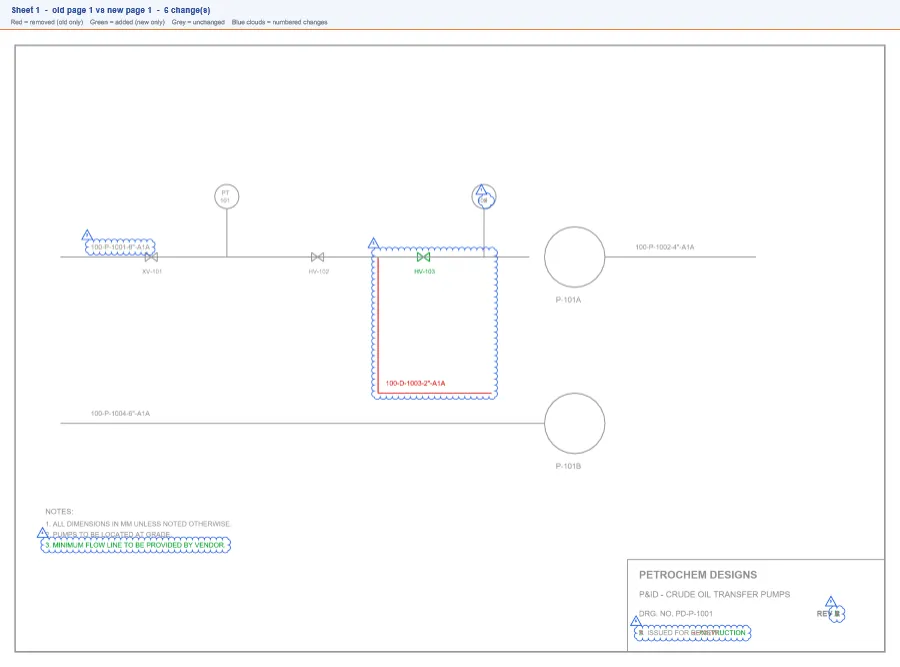
Petrochem Drawing Compare finds every difference between two revisions of a PDF and shows them the way a checker would: numbered revision clouds on the new revision, overlay sheets, and a change list that says in words what changed — for P&IDs, GA drawings, isometrics, vendor drawings, MTOs and specifications.

Windows desktop application · works directly on PDF files

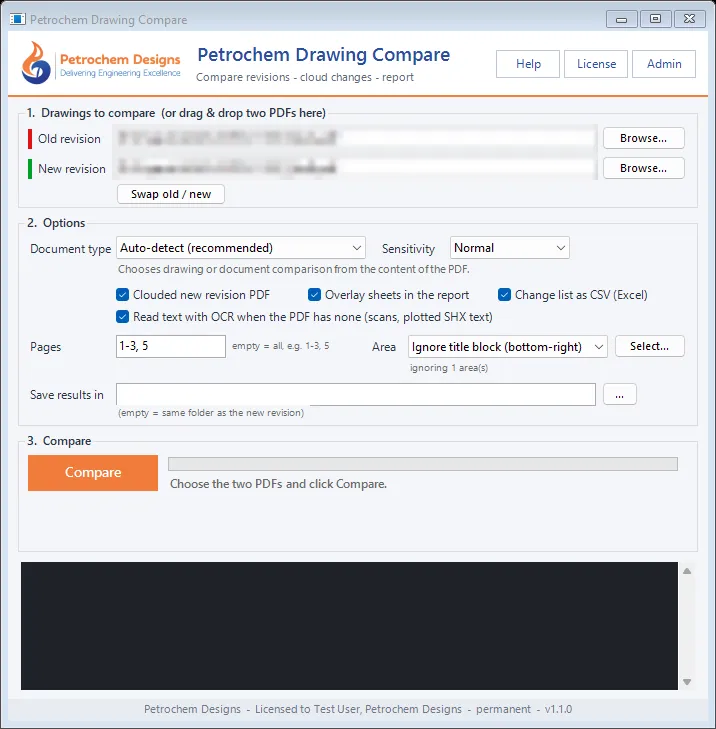
Petrochem Drawing Compare Petrochem Drawing Compare main window
Key features

Why engineers use Petrochem Drawing Compare

  • Changes described in words

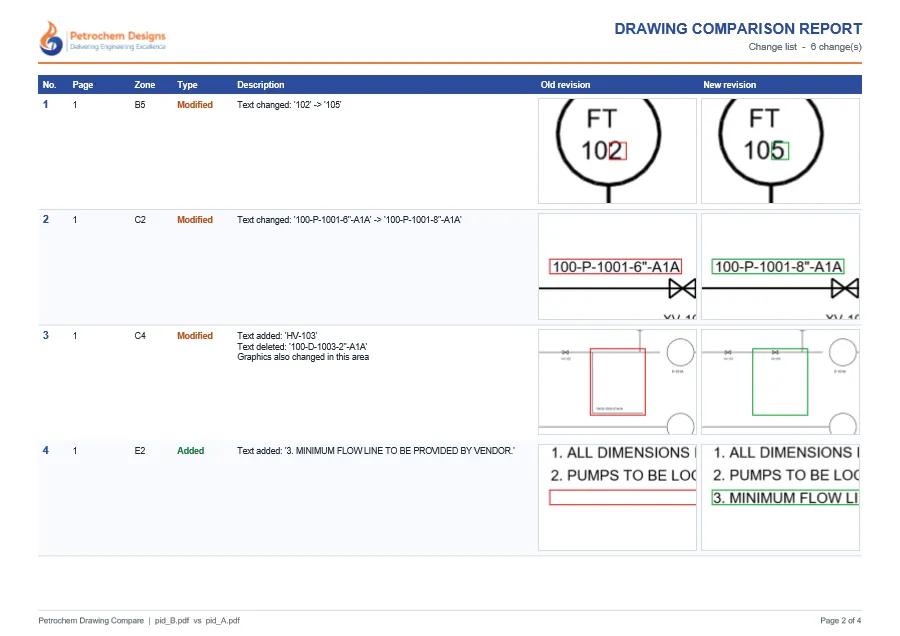
    Not just coloured pixels: “Text changed: 100-P-1001-6\"-A1A → 100-P-1001-8\"-A1A”, “Text added”, “Text moved”, “Graphics changed”.

  • Drawings, tables and documents

    P&IDs, PFDs, GAs, plot plans, isometrics and vendor drawings; MTOs and BOMs row by row; procedures and specifications word by word.

  • Three outputs, one click

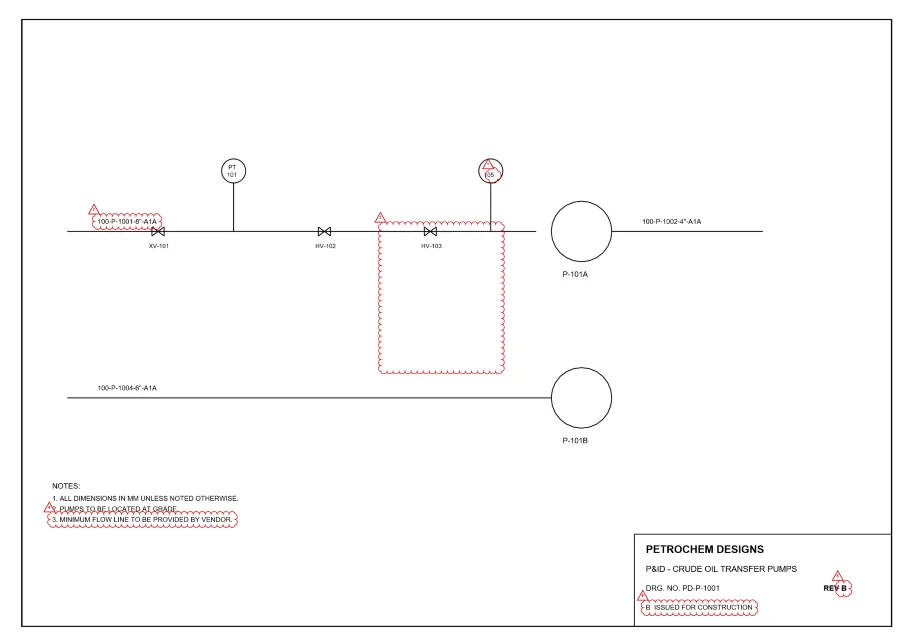
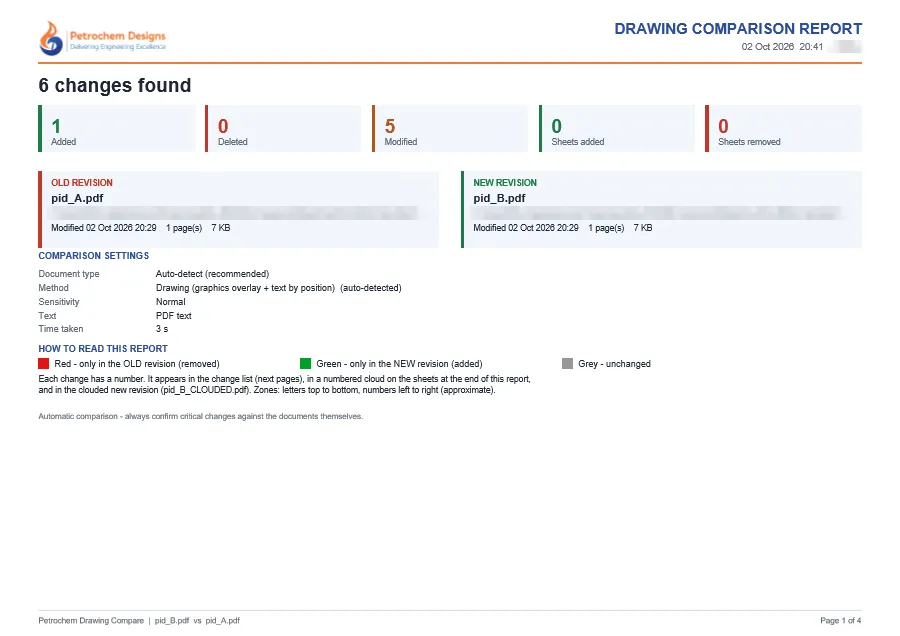
    A comparison report PDF, the new revision with numbered revision clouds, and the change list as CSV for Excel.

  • Scans and SHX text

    Scanned sheets are lined up automatically, and text drawn as graphics (scans, plotted SHX fonts) is read with Windows OCR.

  • Ignore the title block

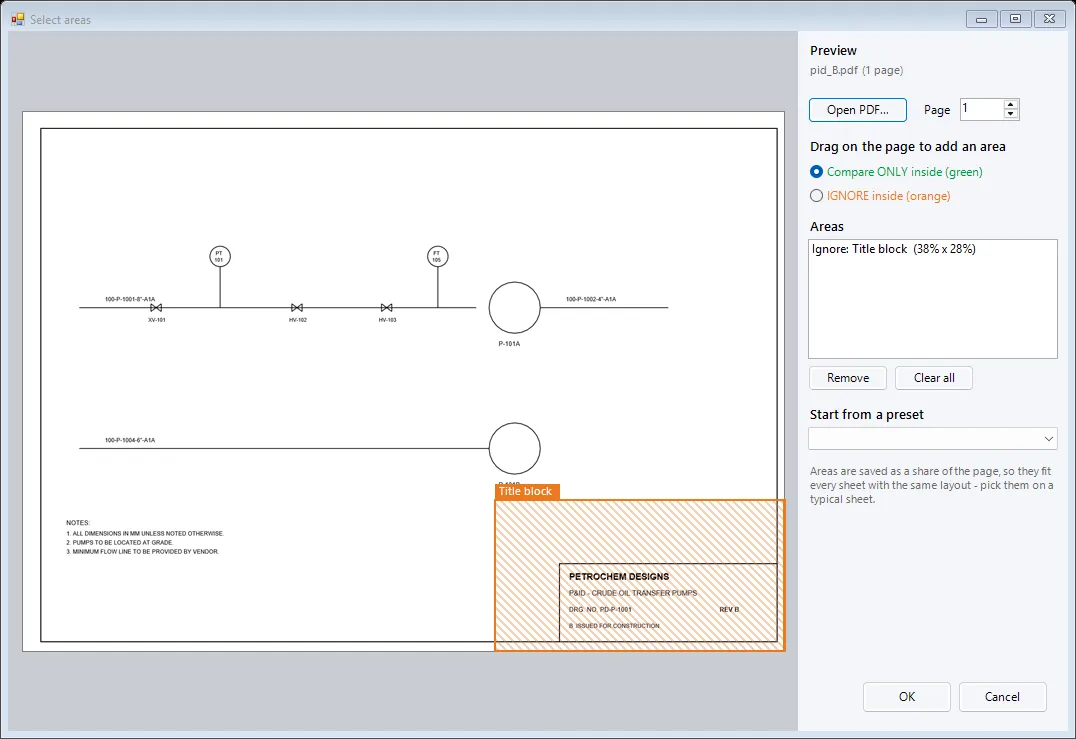
    Compare only part of a sheet or leave areas out — such as the title block and revision table — with presets that fit every sheet of the same layout.

  • Nothing leaves your PC

    All work is done locally. The PDFs are only read; results are written to new files.

How it works

From start to result in 5 steps

  1. 1

    Drag the two PDFs onto the window — the older file becomes the old revision (Swap if needed).

  2. 2

    Keep Document type on Auto-detect, or choose P&ID, GA, isometric, MTO and so on.

  3. 3

    Optionally choose pages, or an area preset such as “Ignore title block”.

  4. 4

    Click Compare — progress is shown and you can stop at any time.

  5. 5

    Open the report, the clouded PDF or the CSV change list.

What’s included

Inside Petrochem Drawing Compare

  1. 1

    Comparison report (PDF)

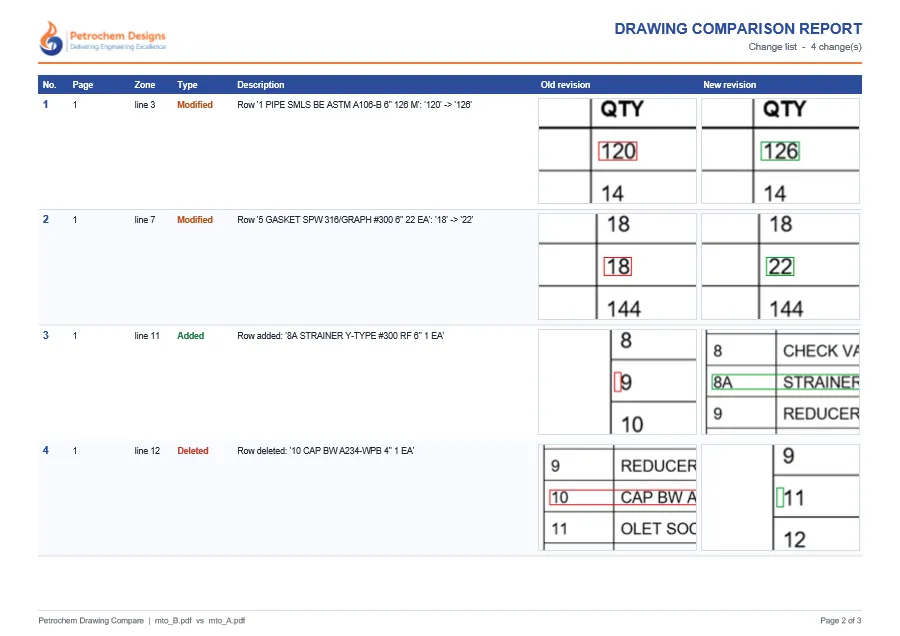
    Summary page, numbered change list with old / new close-ups, and overlay sheets.

  2. 2

    Clouded new revision (PDF)

    The new revision at its original page size with numbered red revision clouds.

  3. 3

    Change list (CSV)

    Every change with page, zone, type and description — ready for Excel.

  4. 4

    Auto-detect document type

    Text-heavy pages are compared as documents, everything else as drawings; the method used is shown in the report.

  5. 5

    Tuned comparison modes

    P&ID / PFD, General Arrangement, Plot Plan, Isometric, Vendor Drawing, MTO / BOM / Table and Procedure / Specification.

  6. 6

    Pages and areas

    Compare selected pages (e.g. 1-3, 5) and only, or everything except, the areas you draw.

  7. 7

    Sensitivity

    High for the smallest differences, Low to ignore specks on poor scans, Normal for most files.

  8. 8

    Administrator settings

    Company report branding and logo, default options, locked options and named area presets for the whole team.

  9. 9

    Command line

    Automate comparisons from scripts: /compare old.pdf new.pdf output-folder [type] [sensitivity].

Screenshots

See it in action

Overview

Checking a new revision by eye is slow and easy to get wrong — especially on dense P&IDs, long MTOs or a 40-page specification. Petrochem Drawing Compare draws each page of both revisions, lines them up (so a sheet plotted or scanned with an offset is not reported as changed), finds the ink that exists in only one revision, and matches it to the PDF text so each change can be described in words.

Tables are compared row by row, so an edited row lists the cells that changed — ‘18’ → ‘22’ — and inserted or deleted rows are listed separately. Procedures and specifications are compared word by word in reading order, across page breaks.

Good to know

  • Colour-only changes, and line-type changes that look alike in print, may not be reported.
  • A moved view is reported as removed at the old place and added at the new place.
  • On poor scans very small edits can be missed — use Sensitivity High for close checks.

Use the program to find changes quickly, and confirm anything safety- or cost-critical against the documents themselves.